 Dialsyx
Dialsyx
Dialsyx
 Dialsyx
Your team, your calls, your next big opportunity.
Bring it all together with Dialsyx.
Manage agents and account access.
See activity. Find your next opportunity.
Listen back and capture the details.
Your team. Your data. Your workspace.
Sign in to your Dialsyx admin portal
Need help signing in? Contact support
Say more. Sell more. That’s Dialsyx.
Dialsyx
| Agent | Status | Campaigns | Messaging | Call Recording | Storage Limit | Last Activity | Actions |
|---|
| Name | Phone | Company | Agent | Deal Value | Status | Added |
|---|
Messages and updates, together in one place.
Submit requests for numbers, porting, account updates, and support. Track progress from one place.
Tell us what you need. Our team will review your request and follow up.
Overview covers the latest 100 number requests and 100 support tickets.
| Request ID | Type | Details | Status | Submitted | Last Updated | Actions |
|---|---|---|---|---|---|---|
| Loading your requests… | ||||||
View your assigned phone numbers and agent capabilities.
| Phone number | Assigned agent | Agent status | Messaging | Recording | Actions |
|---|
Numbers and capabilities reflect linked agent accounts. Activity shows the latest agent activity and may include other numbers used by that agent.
| Contact / Number | Agent | Direction | Date & Time | Duration | Status | Recording |
|---|
| Agent | Contact / Number | Date & Time | Duration | Outcome | Recording |
|---|
Assign lead queues to your agents. Track dialing progress and review related calls.
| Campaign | Assigned Agent | Status | Leads | Dialed | Pending | Progress | Actions |
|---|
Lead progress across campaigns matching your filters.
| Lead | Phone Number | Company | Status | Last Called | Disposition | Actions |
|---|
Progress counts individual leads marked called or carrying a call timestamp. Skipped leads are shown separately. Agents control campaign dialing and status in their dialers.
| Invoice # | Issued | Due | Status | Total | |
|---|---|---|---|---|---|
| Loading invoices… | |||||
| Date | Amount | Method | Reference | Notes |
|---|---|---|---|---|
| Loading payment history… | ||||
Update your contact details. Your login email cannot be changed here.
Personalize your workspace. PNG, JPG or WebP, up to 5 MB.
Change the password used to sign in to this portal.
Your account details as set up by Dialsyx. Contact support to request changes.
Choose how the admin portal looks on this device.
Control which updates you receive from Dialsyx.
Get help or learn more about your admin portal.
What the Dialsyx Customer Admin Portal is, and how it's organized.
The Dialsyx Customer Admin Portal is where you manage your calling team: your agents, their phone numbers, call activity, recordings, leads, outbound campaigns, support requests, and billing — all scoped to your business only. Nothing you see here is shared with other Dialsyx customers.
Sign in with the email and password your Dialsyx account owner set up. If you forget your password, use Forgot password? on the sign-in screen, or contact support. Check Keep me signed in on a private device to stay signed in between visits.
The left sidebar lists every section of the portal. Click a section to open it — the page updates instantly without a full reload. Most list pages (Agents, Numbers, Call Logs, Recordings, Leads, Requests) also refresh themselves quietly in the background every ~25 seconds, so counts and statuses stay current without you needing to refresh the page.
Use the search bar at the top of the portal, or press ⌘K (Ctrl K on Windows), to jump straight to an agent, a phone number, or any page in the portal.
Toggle the sun/moon icon in the top bar, or go to Settings → Appearance, to switch between light and dark themes. Your choice is remembered on this device.
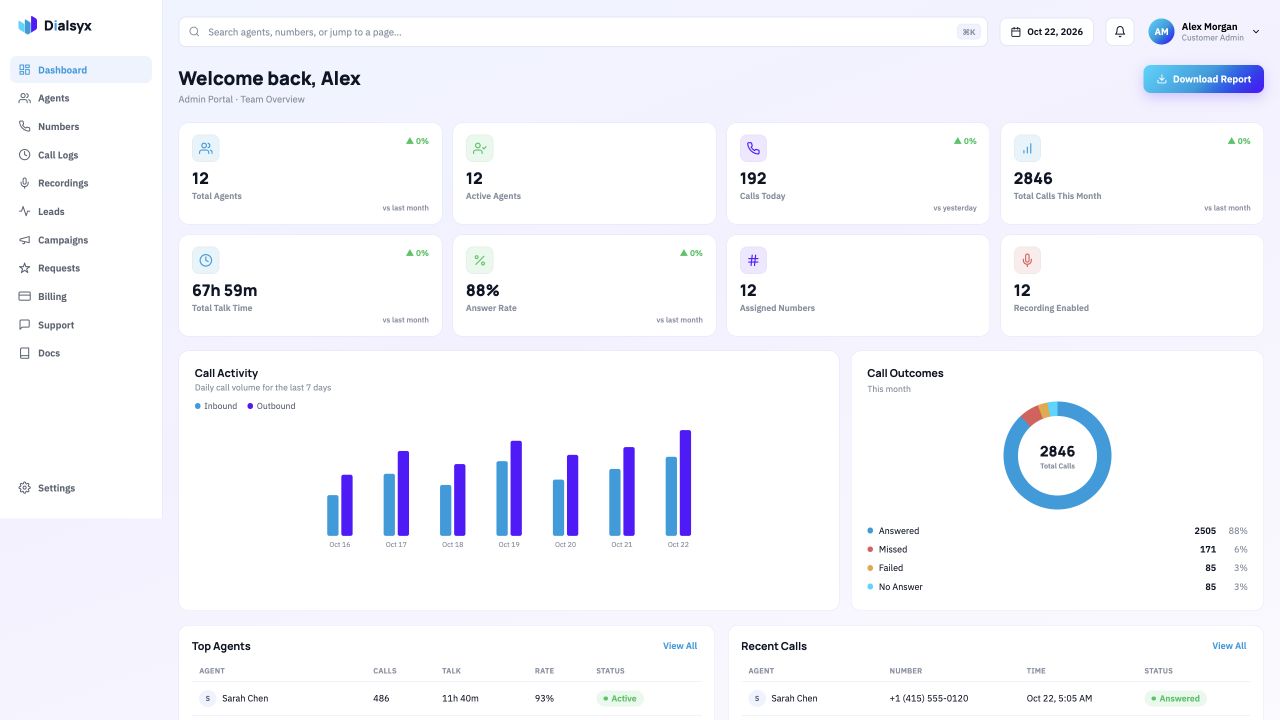
A live, at-a-glance summary of your account.
The Dashboard is the first page you see after signing in. It summarizes your team's activity so you can spot trends without digging into individual pages.
Use the Download Report button to export a summary of your current Dashboard view for sharing or record-keeping.
Manage the people and lines that make up your calling team.
The Agents page lists every agent account on your Dialsyx subscription, with their assigned phone number, status, and enabled features at a glance.
Click any row (or the agent's avatar) to open their detail page, which has four tabs:
An agent's activity badge is based on their most recent call: Active (call within the last 10 minutes), On Break (10–60 minutes since their last call), or Offline (over an hour, or no calls yet).
Every phone number assigned across your agents.
The Numbers page lists each phone number assigned to your agents, derived directly from your agent roster — a number shared by more than one agent is shown once, with every agent linked to it.
Search by number or agent name, filter by status or enabled feature (messaging, recording, active, disabled, or shared numbers), and sort by most/least recent activity.
Use Request a Number on this page, or Port Existing Number to bring a number you already own onto Dialsyx — both take you to the Requests page with the right request type pre-selected.
The complete, searchable history of calls across your team.
Call Logs is your full call history — every inbound and outbound call handled by your agents, with the detail you need to review activity or investigate a specific interaction.
Narrow the list by agent, phone number, direction (inbound/outbound), outcome (answered, missed, failed, cancelled, transferred, no answer), date range, and whether a recording exists.
Each row shows the agent, counterparty number, direction, duration, outcome, and timestamp. Where a recording exists, you can play it inline or jump to the Recordings page for the full player and any AI insights.
Use the export option to download the currently filtered call list as a CSV for reporting or record-keeping outside the portal.
Listen back to recorded calls and review AI-generated insights.
Recordings brings together every call recording across your team, for agents that have call recording enabled.
Recordings are stored privately. Playback links are short-lived, signed URLs generated on demand — recordings are never exposed through permanent public links, and you only ever see recordings that belong to your own agents.
The top of the page shows your total storage used against your plan's recording storage limit, along with recording counts and average duration.
Where enabled for an agent, recordings include automatic transcription, a summary, and extracted insights (such as sentiment or key topics) to help you review calls faster without listening to every minute. AI insights are only available for agents whose plan includes this feature, and where applicable, a messaging profile approved by Dialsyx.
Use the download option on an individual recording to save it locally, subject to your plan's permissions.
Track prospects and deals alongside your calling activity.
Leads CRM is a lightweight pipeline for tracking people and businesses your agents are calling or following up with.
Use Add a Lead to the CRM to create one manually — assign it to an agent, set an initial status, and record contact details, company, and an optional deal value.
Leads move through New, Interested, Follow-Up, Callback, and Not Interested. Update a lead's status as it progresses to keep your pipeline accurate.
Filter leads by agent or status, and search by name, company, or phone number to find a specific lead quickly.
Organize outbound dialing into structured, trackable campaigns.
Campaigns let you assign a batch of leads to a specific agent and track dialing progress as a group, rather than one lead at a time.
Click New Campaign, name it, and assign it to an eligible agent — only active agents with dialer campaigns enabled on their account can be selected. Import leads by pasting them or uploading a CSV file; use Download Template in the import dialog to get the exact column format expected (phone number, first name, last name, company, notes).
Open a campaign to see its lead list, each lead's dial status (pending, called, skipped), disposition, and when they were last called. The campaign's summary cards show total, dialed, pending, and skipped lead counts at a glance.
The Agent Overview section summarizes campaign activity per agent — how many campaigns, assigned leads, and dialed leads each agent is responsible for.
Ask Dialsyx for changes, new resources, or general help.
Requests is where you ask Dialsyx's team to make changes that aren't self-service in the portal — new phone numbers, porting an existing number, agent access or feature changes, billing questions, and general support.
Choose a Request Type, optionally link it to a specific agent, fill in the details, and submit. You can attach a single supporting file (up to 10 MB) — for larger or multiple files, the form links out to WhatsApp support after you submit.
Every request you submit appears in Your Requests below the form, with its current status: Open, In Progress, Awaiting Info, Resolved, Rejected, or Cancelled. Search and filter by status or type, and click any request to see its full details and attachment.
Your plan, invoices, and payment history.
Billing gives you a clear view of your current plan, every invoice issued to your account, and your payment history.
Shows your plan name, status, monthly price, start date, and renewal date.
Browse every invoice issued to your account with its issue date, due date, status (draft, sent, paid, void), and total. Click an invoice to see its line-item breakdown. Payment History lists every payment recorded against your account.
All figures in Billing are shown in USD, rounded to the nearest whole dollar, converted from Dialsyx's internal PKR pricing at a fixed reference rate. This is for your convenience in the portal only — it is not a live foreign-exchange rate and is not used for actual settlement.
Your profile, security, and account preferences.
Update your contact name and phone number. Your login email is shown for reference but can't be changed from here — contact support if you need to change it.
Change the password used to sign in to this portal. Choose a password of at least 8 characters.
A read-only summary of your business name, plan, account status, monthly price, and how long you've been a Dialsyx customer. These are managed by Dialsyx — contact support to request a change.
Switch between light and dark mode for this device.
Choose which emails and SMS alerts you receive — request status updates, invoice and billing alerts, product updates, and urgent SMS alerts. Toggle what you want, then select Save Preferences.
Quick links to contact support on WhatsApp and to open this Docs page.
Common questions about using the portal.
Features like dialer campaigns, messaging, and call recording are configured by Dialsyx as part of your plan. You can see what's enabled for each agent in that agent's Settings tab, and request a change from there or from the Requests page.
Your actual billing relationship with Dialsyx is in PKR. The portal converts and rounds those figures to USD purely for a consistent, easy-to-read display — it doesn't change how you're actually invoiced.
The portal is strictly scoped to your own business. Every page, including search, only ever shows data tied to your account.
Most list pages refresh automatically in the background. If something still looks stale, use that page's Refresh button, or reload the portal. If data still looks wrong after that, contact support.
Use Forgot password? on the sign-in screen. If you're already signed in, you can set a new password from Settings → Security.
Reach the Dialsyx team on WhatsApp from Settings → Help & About, or from the Contact Support link on the Requests page.
These permissions are configured by Dialsyx for this agent. To request a change, contact support or submit a request.